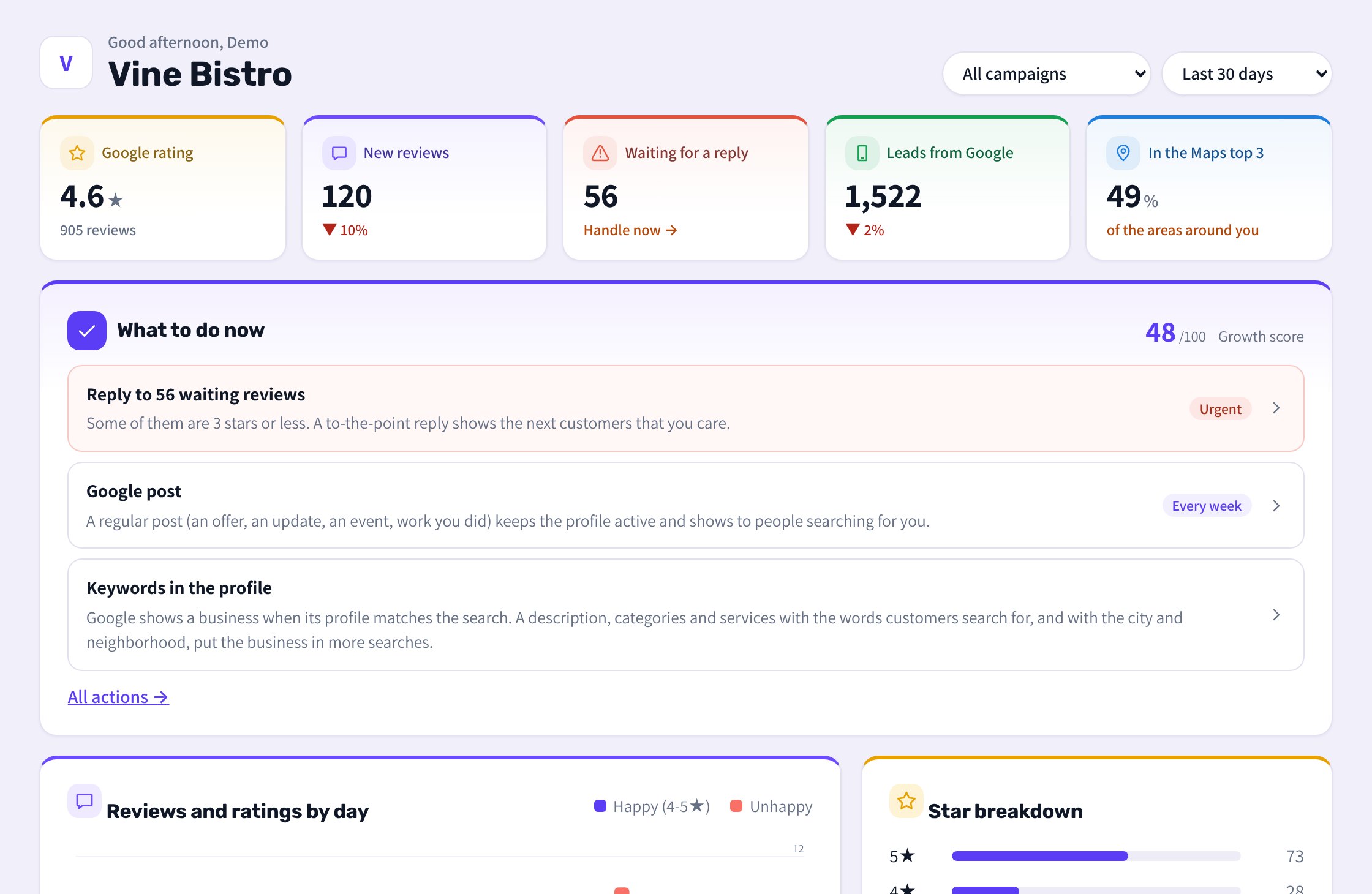
This is the most important step. The full connection to the business's Google account brings all the data into the system: views, calls, what people searched, and the ability to reply to reviews and publish posts right from here. It takes two minutes, and you do it once.
Why the full connection?
Full connection
Link only
Reviews and rating
✓
✓
Review replies published on Google straight from the system
✓
—
Profile views, calls, direction requests and website visits
✓
—
What people searched when they found you
✓
—
Publishing posts and photos to your profile
✓
—
All locations load on their own, updated every half hour
✓
—
1
Before you start: which Google account?
You need the Google account that manages the business profile on Google Maps, as an owner or manager.
Not sure? Go to business.google.com with the account. If the business shows up there, it's the right one.
Someone else manages the business (an agency, a partner)? Ask them to add you as a manager on the profile, then connect.
2
Click “Sign in with the business's Google account”
In the menu, open “Connect Google”.
Click the button on the “Full connection” card, and choose the account from the previous step.
If you see “Google hasn't verified this app”: click “Advanced”, then “Go to GoFive”. That's fine at this stage.
On the permissions screen, tick the permission to manage the business profile and click “Continue”. There's no access to your email or files.
4
Choose locations, and check that the data arrived
Back in the system you see the list of locations in the account. Select the ones you want to follow.
Reviews and rating show up within a minute, and the views and calls of the last 18 months within a few minutes. Google reports these numbers a few days late, so the last few days fill in gradually.
The profile health check and the growth actions arrive within about 15 minutes. The "Connect Google" page shows what has arrived and what's still on the way.